I recently switched keyboards and picked up a daskeyboard professional (model-s). This is a really nice (and satisfying) mechanical keyboard, which I really like. However, das only makes a Windows version of the keyboard, and I am running Mac OS X. In general, this isn’t an issue, as I was able to remap control keys to be in the right position, but I really missed being able to quickly toggle whether the system volume is muted.
I have always been amazed by some of the digital art work that Mario Klingemann (aka @Quasimondo has created using with Voronois. After doing some searching, I found an early ActionScript 1 Voronoi implementation that Mario did, and I ported it to JavaScript.
I wanted to share the results:
Here is a graphic I created by playing around with the code:
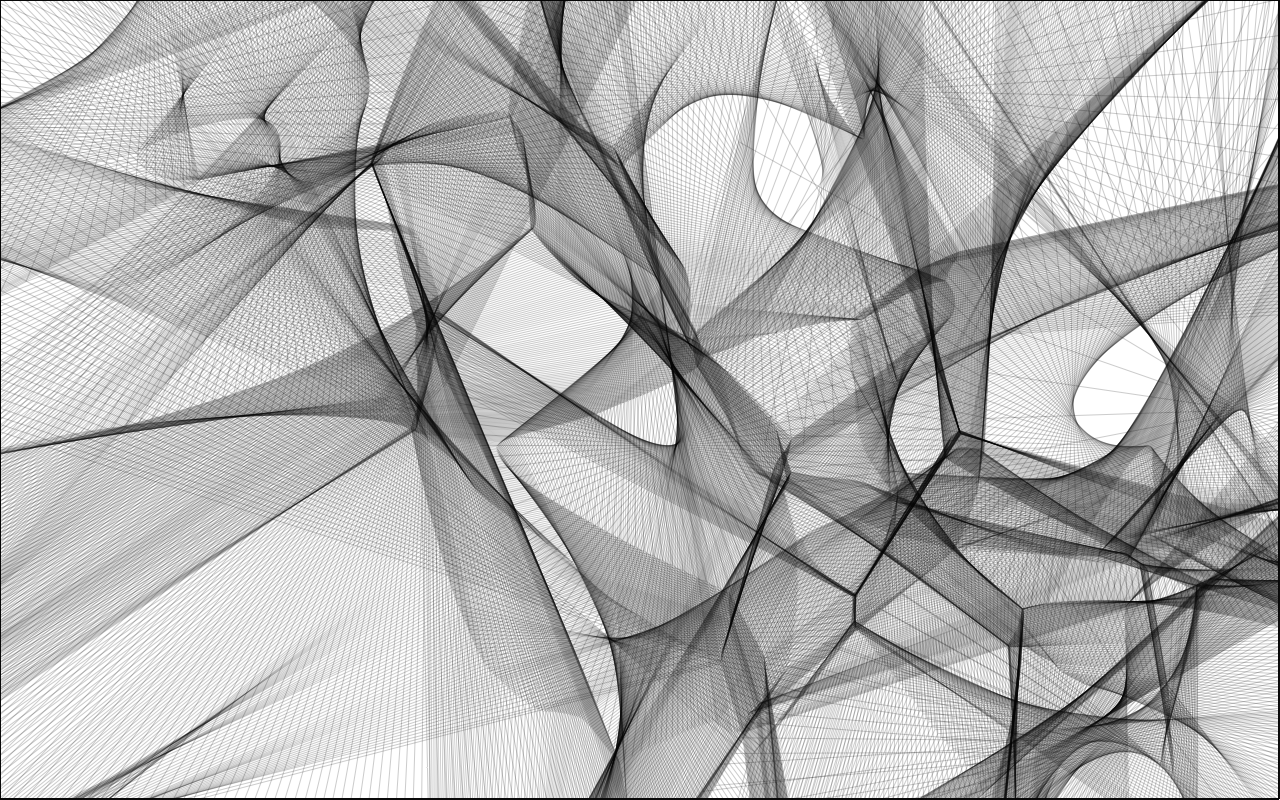
The code is pretty much a straight up port, with some minor optimizations for JavaScript. I also replaced the rendering from the Flash display list API, to EaselJS. All of the credit really goes to Mario who wrote the original code.
Last week I was playing around with a little EaselJS experiment which required me to do collision detection against all items on the screen. This worked fine with a small number of items, but of course, the more items I added, the slower everything became.
I knew that I needed to optimize the code, and pare down the number of collision checks. I have done this before with a grid (even held a contest for it) and was going to port that AS3 code to JavaScript. However, Ralph Hauwert suggested I look at implemented a QuadTree, which should be more efficient.
Comcast has made the Japanese NHK channel available for the next week. It can be accessed via channel 330 on Comcast. The broadcast is in Japanese, but if you have an SAP enabled TV or set top box, you can listen to a translation of the broadcast.
It took me a while to figure out how to enable secondary broadcast on my Comcast box, and I didn’t find much info online, so I wanted to post it here in case anyone else was interested.
I have been having fun playing around with JavaScript, the HTML5 Canvas element and EaselJS lately, and have been building a lot of small experiments. I wanted to share a simple one I created, which creates spiral designs.
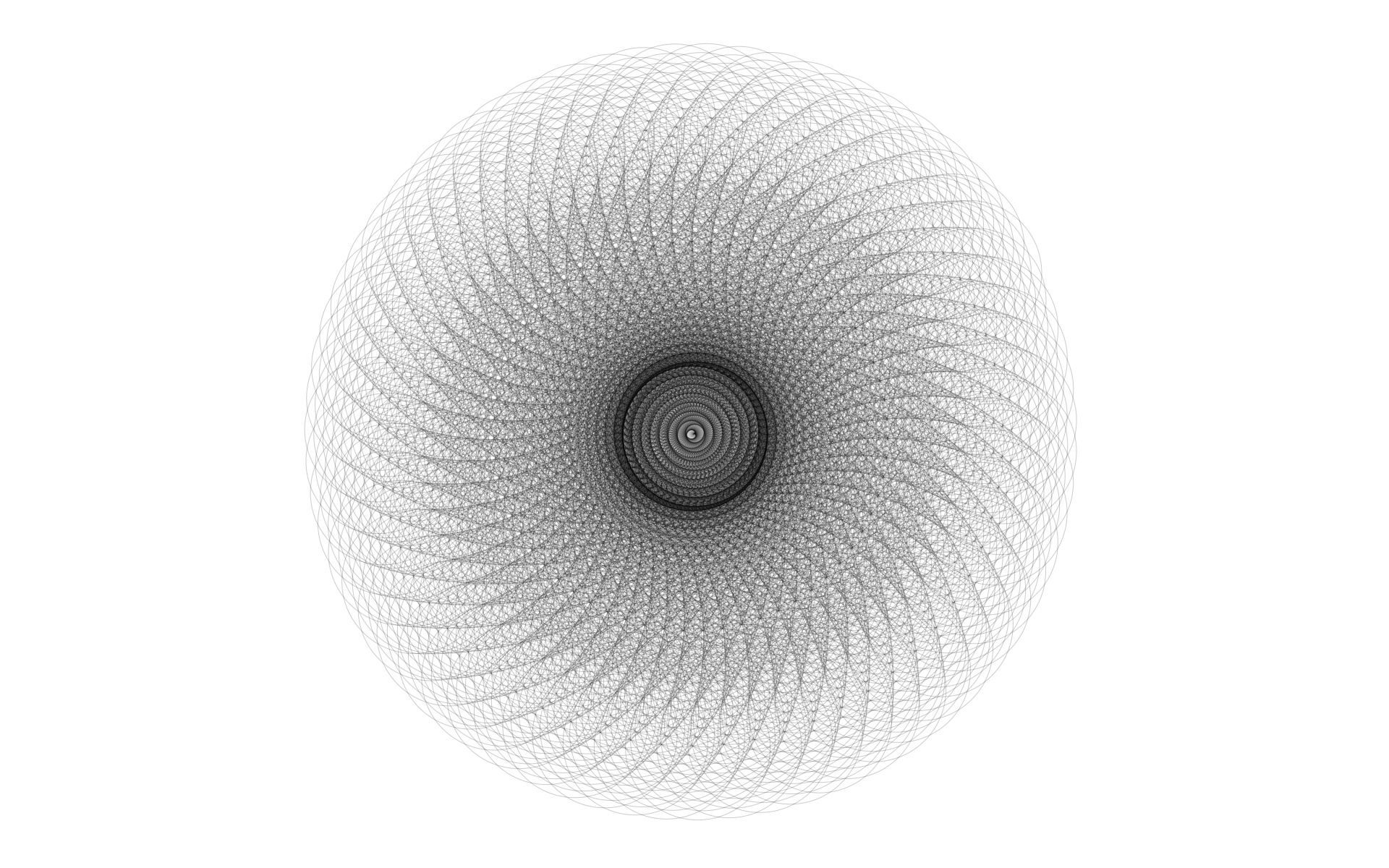
The example was pretty simple to put together, but is fun to play with, and can make some pretty nice patterns / spirals. I have uploaded a couple of images that I have created using the example:
If you have happen to have been watching my Flickr feed for the past week or two, you have probably noticed that I have been playing around with creating some graphics using Canvas and EaselJS. What started as a simple EaselJS experiment, quickly morphed into an excuse to build a mini app / example and play around with some of the new HTML5 and CSS3 features.
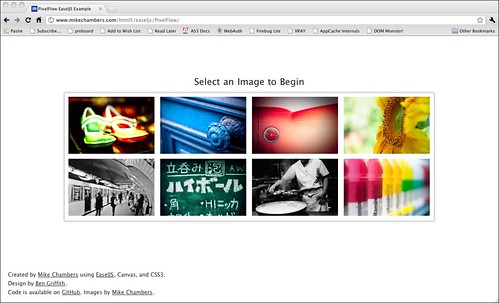
The example I created (named PixelFlow) is a simple example / app that allows you to choose an image, and then create some designs using the colors from the image. The core drawing functionality is built about the HTML5 canvas element and the EaselJS library. It also leverages CSS3 transitions and transformation for animating the UI elements (loading and unloading).
I am wrapping up a code example that uses the Canvas.toDataURL API to save canvas data to an image. I am almost done, and was doing a final round of browser testing when I noticed that my example wasnt working on my Android based Google Nexus One Device (2.2.2). After some debugging, and then Googling, I discovered that the Canvas.toDataURL API is not implemented on Android (you can view the bug report here).
One of the cool features of the HTML5 canvas element is the toDataURL method. This returns a Base64 encoded image in the form of a data url string. Among other things, this can be displayed directly within an IMG element on the page, or sent to the server so the image can be saved.
However, one thing that I found out this weekend is that there is no background color for the image returned from toDataURL. Looking at the actual canvas draft specification, I found this:
Just a quick note, but I have created a Flickr set which contains some of the generative graphics I have been creating using canvas, JavaScript and EaselJS.
UPDATE: All images have been archived here from Flickr.
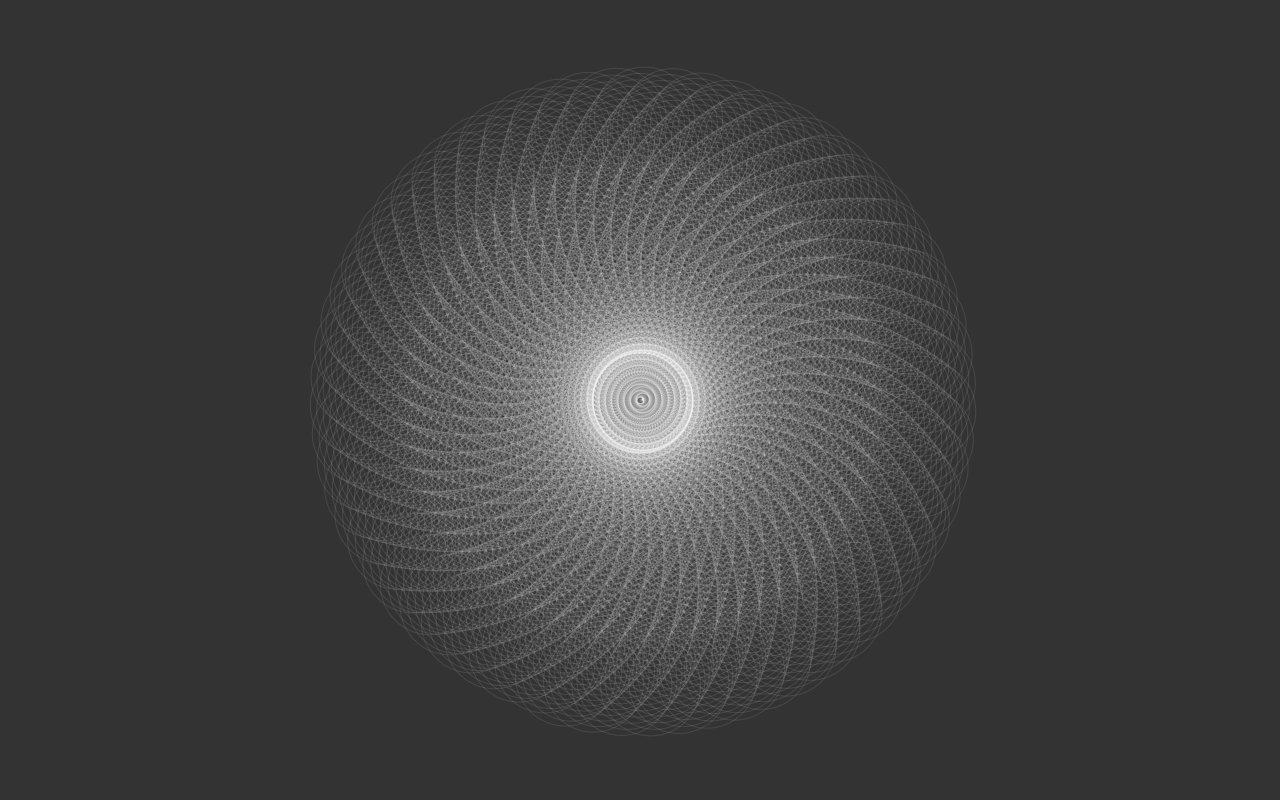
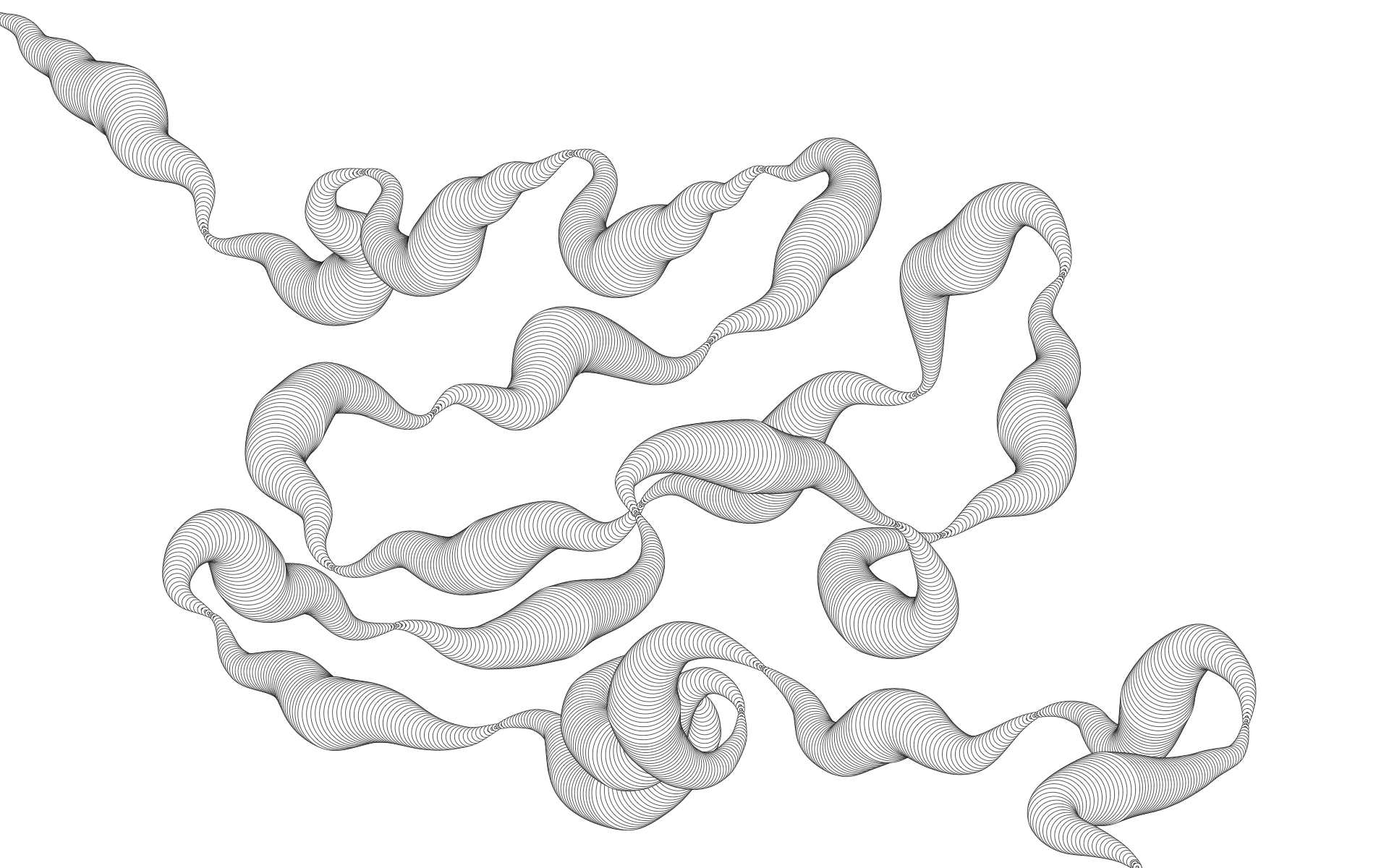
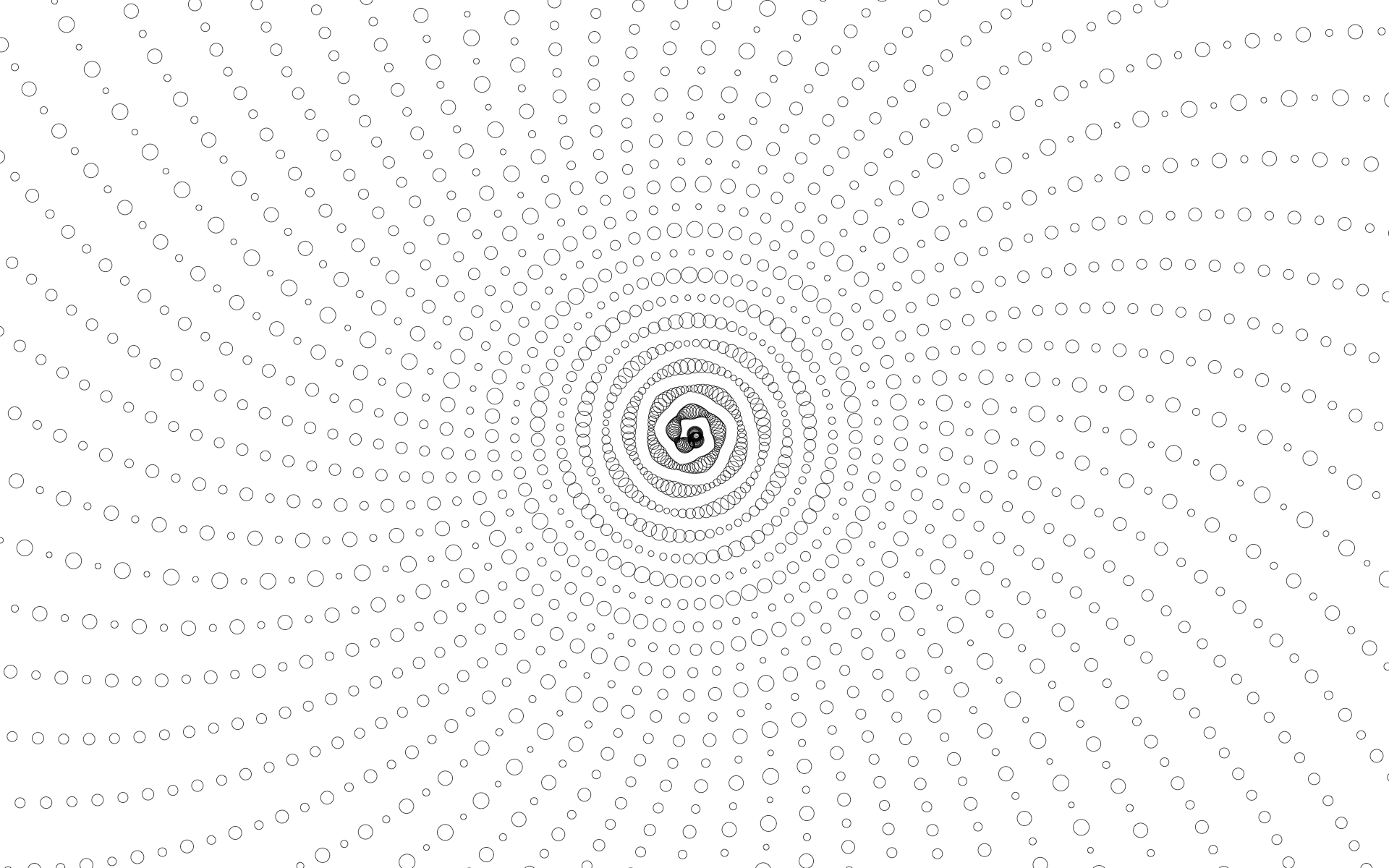
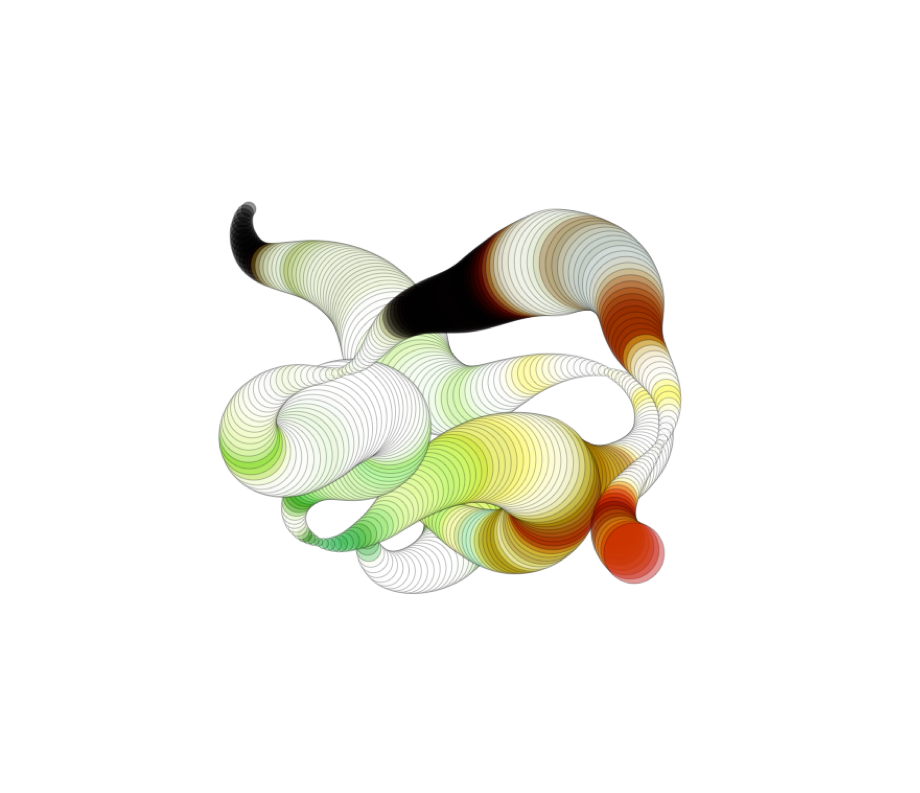
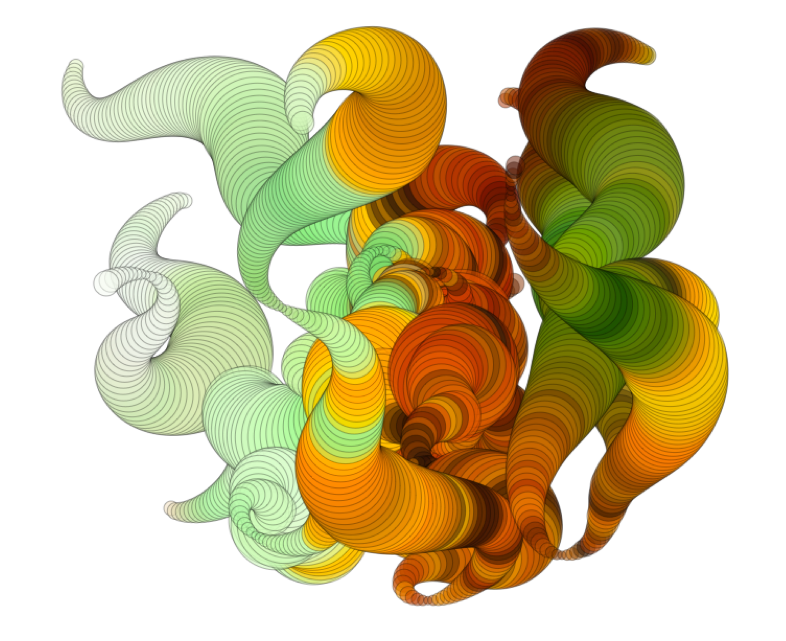
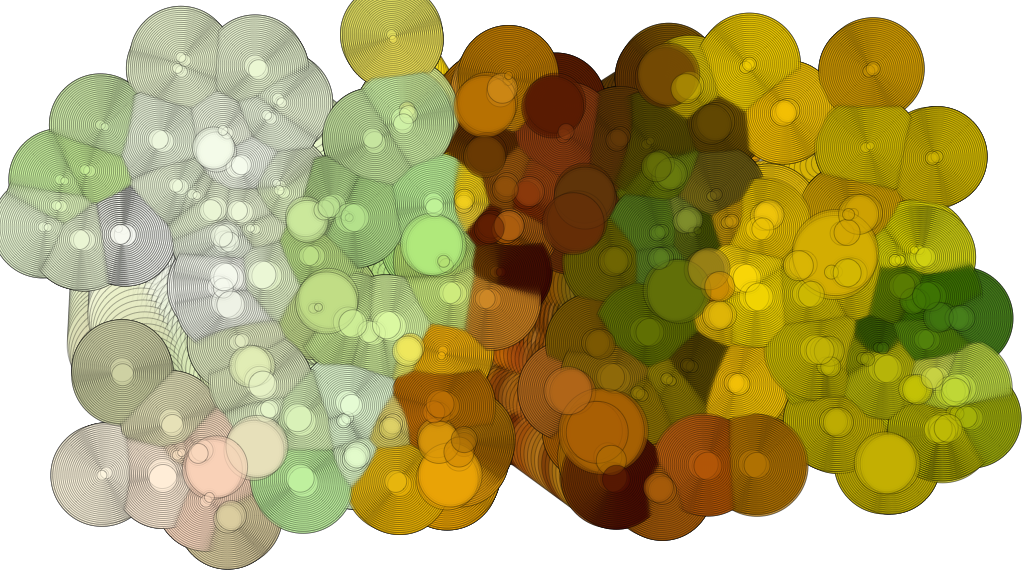
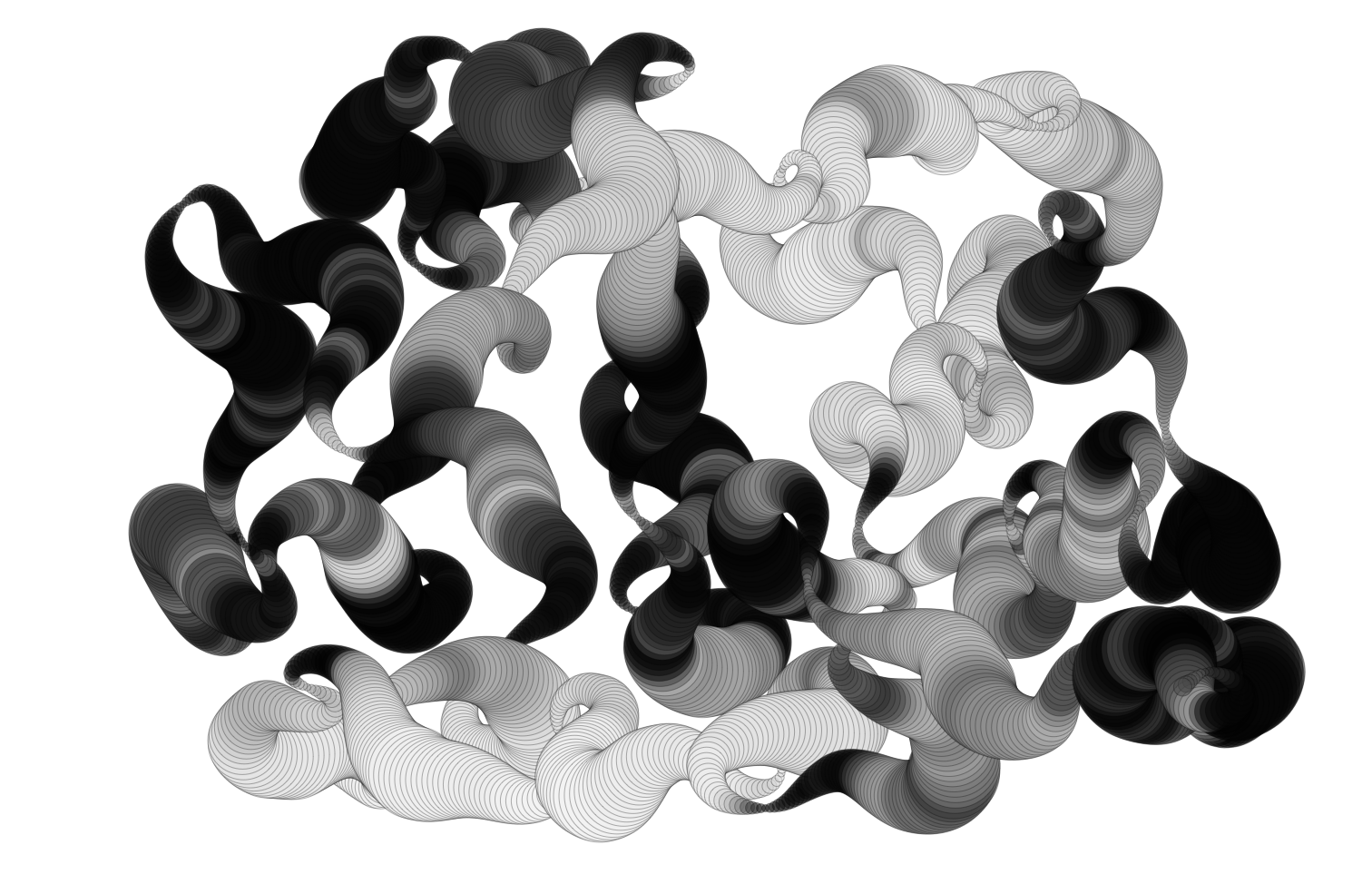
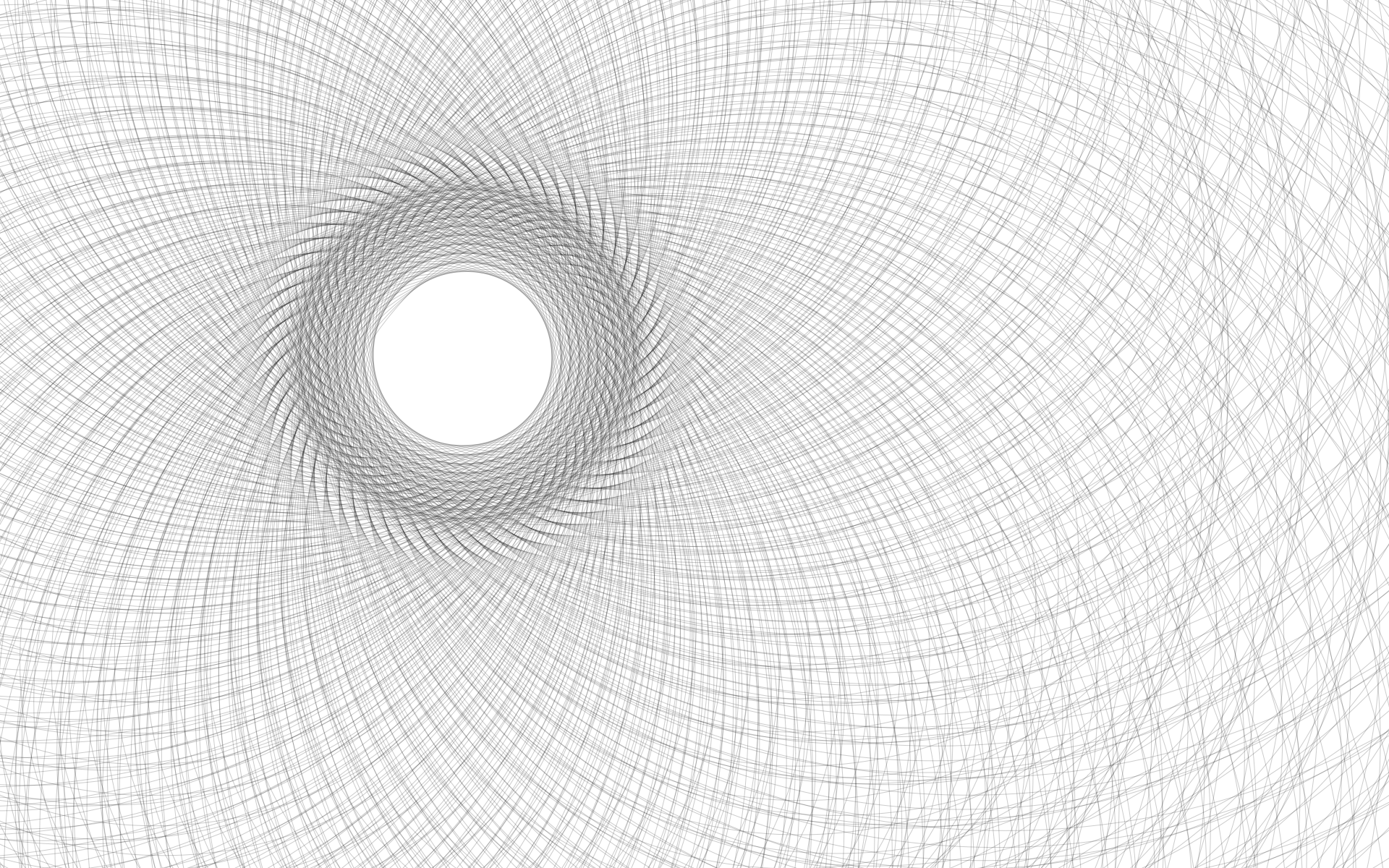
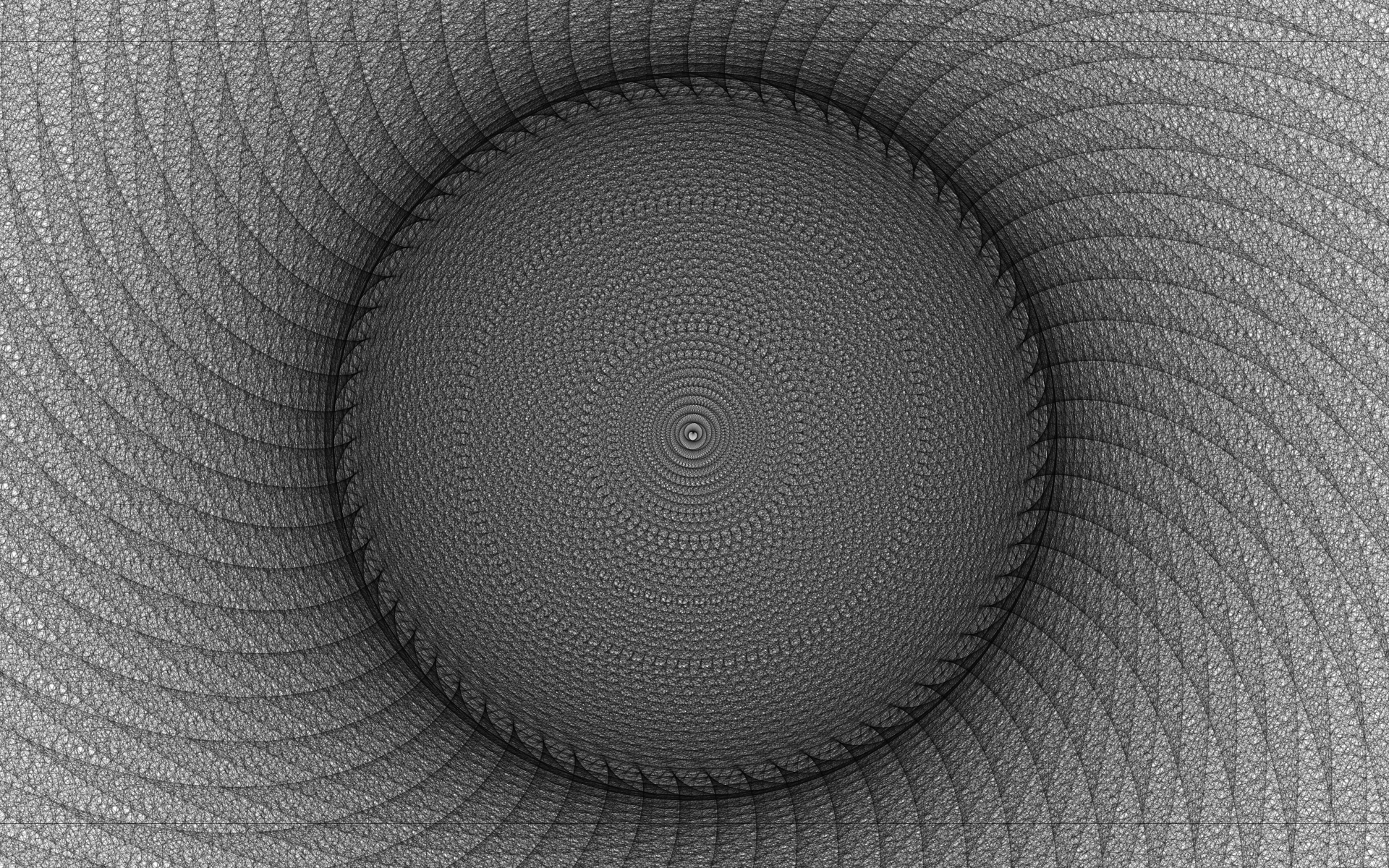
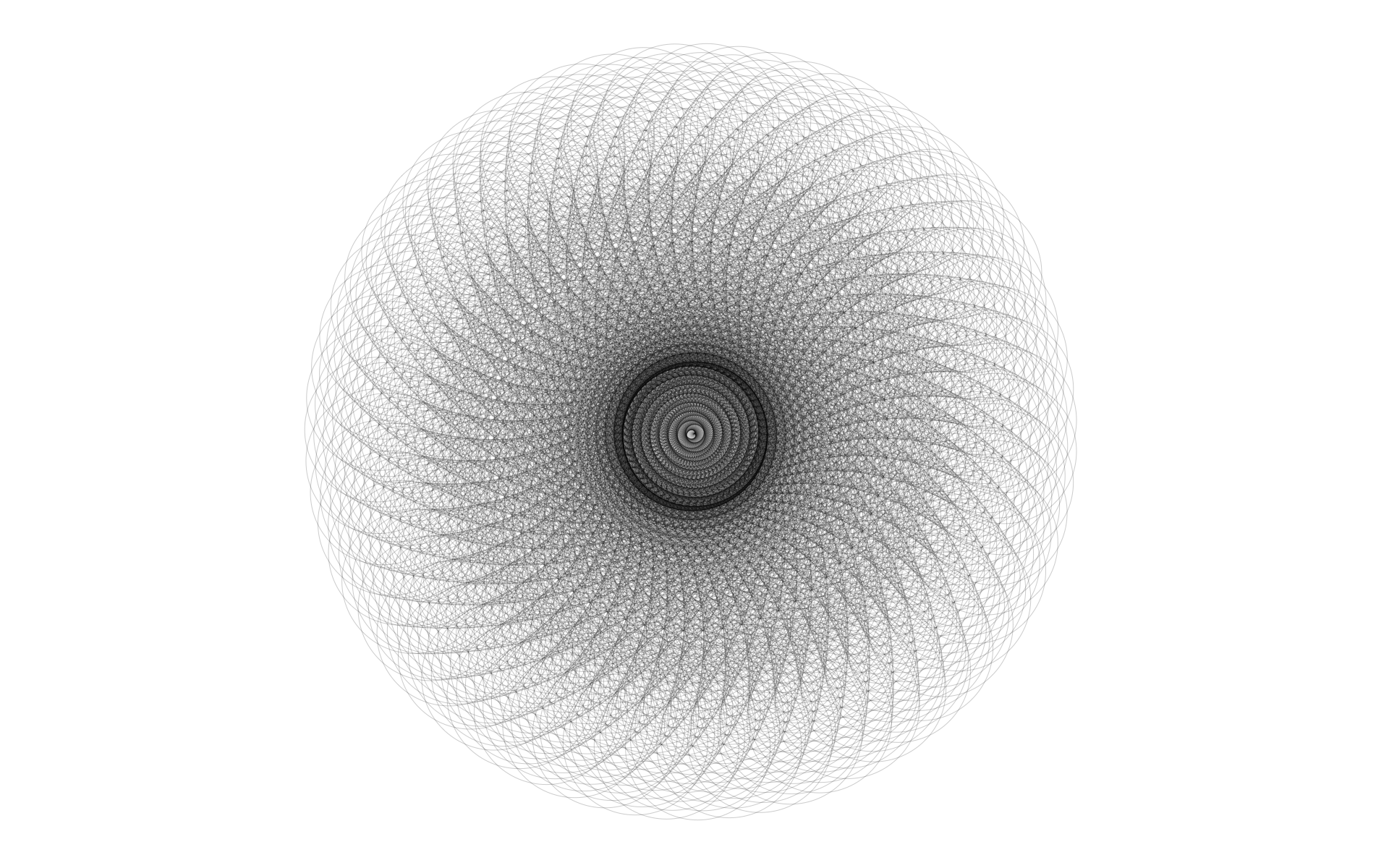
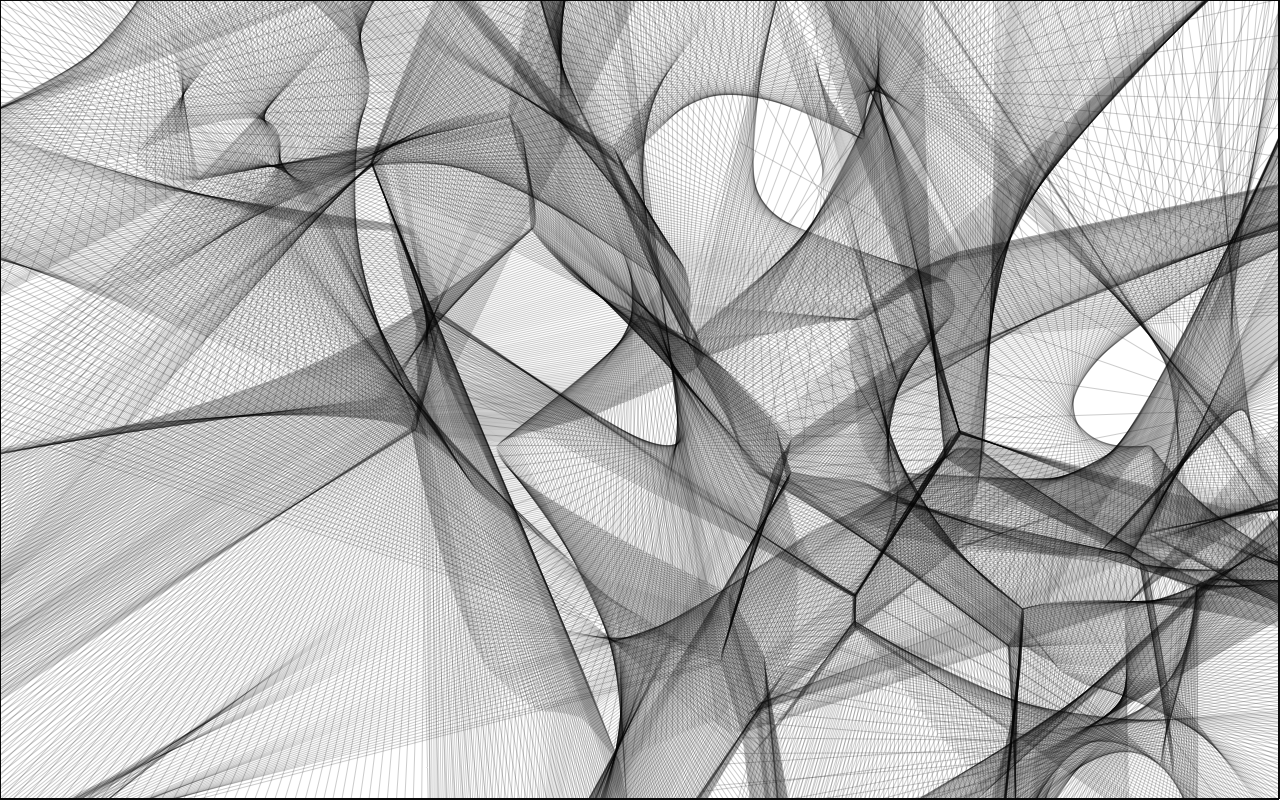
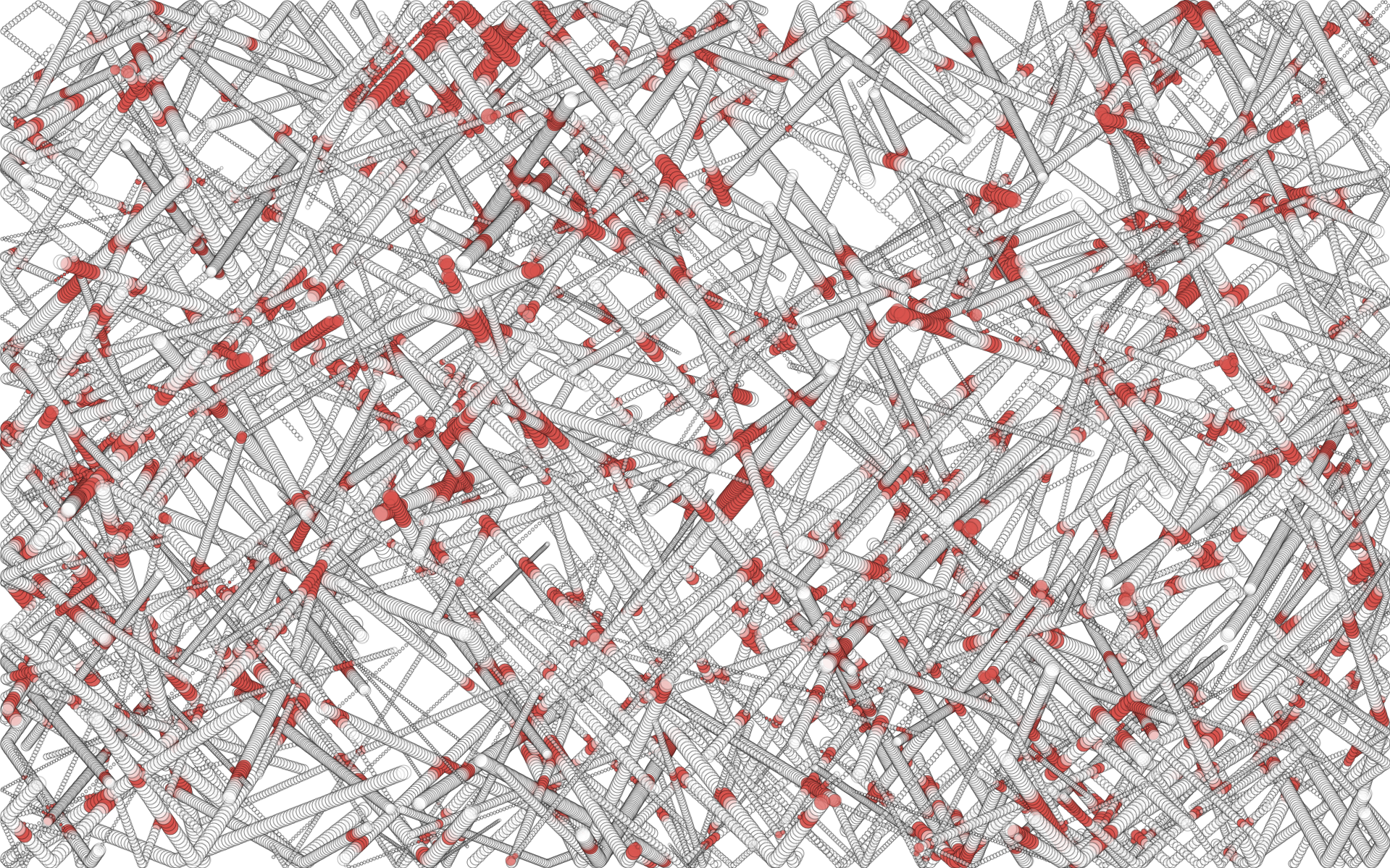
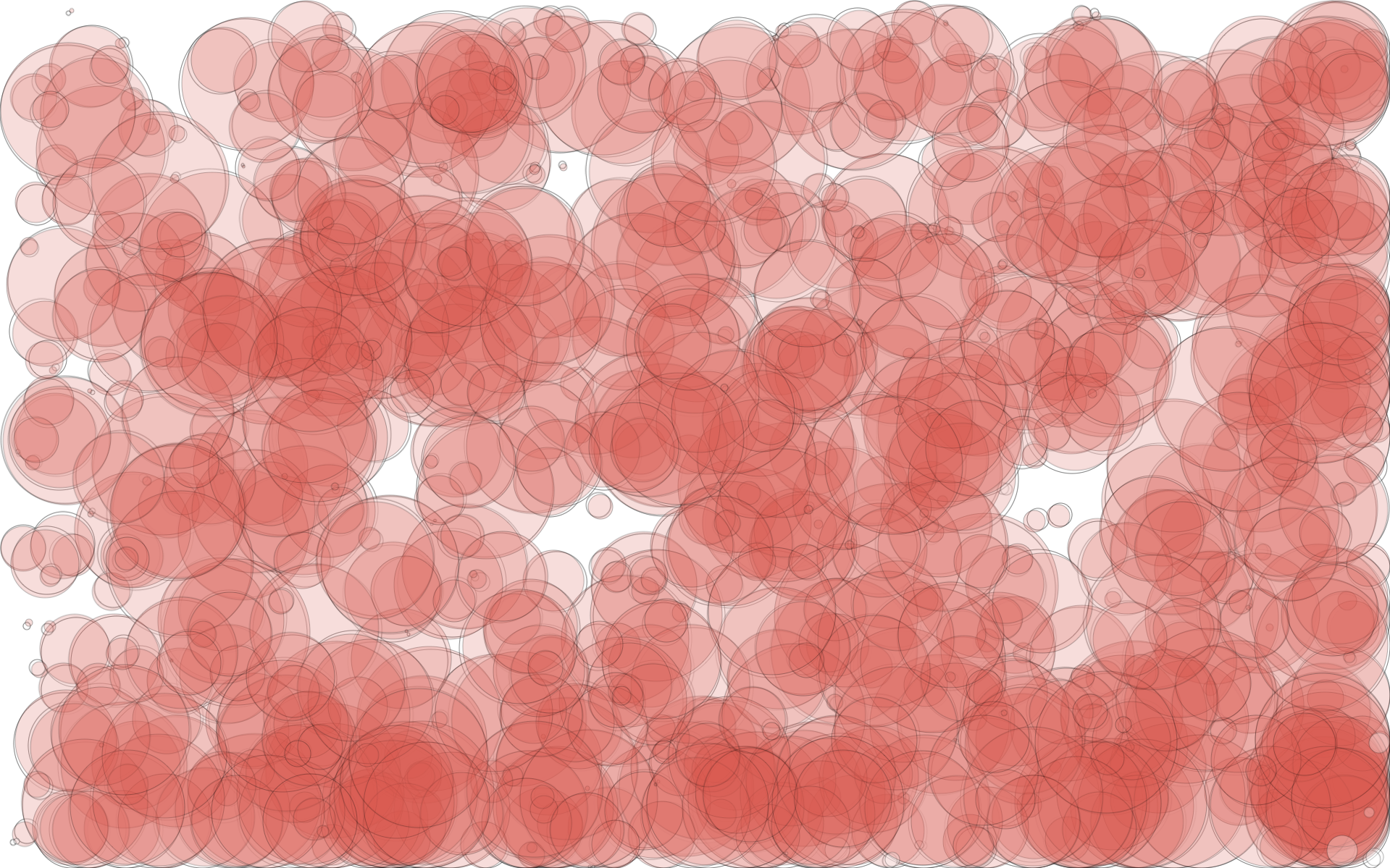
You can view the set here.
I haven’t released all of the code used to create all of the examples, but I will release the code / examples as I finish them. Ill post new images on the set whenever I create something I think is interesting.
If you run my EaselJS Drone Follow example from yesterday on any non-Android / iOS computer / device, you may notice that a graphic is drawn between the mouse touch point and the current position of the drone. This is done by managing and drawing to two canvas elements and is provided to help make it clear what the drone is following (your mouse) and which direction it is currently heading.