
Just quick fyi : I should have an updated version of my Macromedia News FireFox extension available sometime on Monday. The new version will add full support for Thunderbird 1.0, as well as fix a few minor bugs.
Well, now that I have gotten my first FireFox extensionworking, I decided to see if I could make it run within Thunderbird. The first issue I ran into was trying to figure out how to debug extensions within Thunderbird. It took me a while to figure it out, but it is pretty much the same as in FireFox.
First, you have to set the following Thunderbird preference to true:
browser.dom.window.dump.enabled
However, there is not an easy way (such as FireFox’s about:config) to set the preference. In order to set it, you need to add the following line to your user.js file in your Thunderbird profile directory:
One of the things that is cool about building extensions for FireFox, is that in most cases they can easily made to run within Thunderbird. However, sometimes your extension needs to know which environment it is running within. You can determine this by checking the navigator.vendor property.
var firefox = false;
var thunderbird = false;

var vendor = navigator.vendor;

if(vendor == "FireFox")
{
    firefox = true;
}
else if(vendor == "Thunderbird")
{
    thunderbird = true;
}

dump("Running in FireFox : " + firefox + "\n");
dump("Running in Thunderbird : " + thunderbird + "\n");
This makes it easy to branch your code when necessary.
Here is how to load a URL from an extension in Thunderbird, into the Mail Start Page area:
var url = "http://www.mikechambers.com";
var browser = document.getElementById("messagepane");
browser.loadURI(url, browser.currentURL, null);
That will allow you to change the current document loaded in the Mail Start Page (email reading) area of Thunderbird.
Here is a quick code snippet that shows how to open a URL in an external browser from within a Thunderbird extension:
var url = "http://www.mikechambers.com";
var uri = Components. classes["@mozilla.org/network/io-service;1"]. getService(Components.interfaces.nsIIOService).newURI(url, null, null);

var com = Components.classes["@mozilla.org/uriloader/external-helper-app-service;1"];
var httpHandler = com.createInstance(Components.interfaces.nsIExternalProtocolService);

httpHandler.loadUrl(uri);
This will open the URL in the system’s default web browser.
As I posted the other day, I have built an extension for FireFox that makes it easy to keep up with the latest news and information from Macromedia. Judging by the number of downloads, as well as emails I have received, it seems to be pretty popular.
I have also received a couple of emails asking for features / changes that are already possible by tweaking the preferences. So, I figured I would make a post to describes in detail what each preference does, as well as describe some undocumented settings.
Well, the FireFox engadget search plugin I made has proven to be useful (and popular), so I decided to put together a search plugin for what is probably my favorite site, boingboing.
So, here it is:
Install boingboing Search Plugin
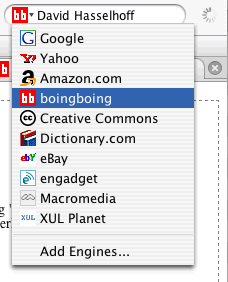
This will place a simple boingboing icon in your FireFox search bar, and make it easy to search boingboing and find that cool article that you saw posted a couple of days ago.
Here is a quick tip on how to add an empty separator into a FireFox extension menu. By default, the XUL menuseparator tag draws a line across the menu. Here is how to add a separator that just adds a space (no line):
<menuseparator style="visibility:hidden" />
Pretty simple, but it took me a little searching to figure out, so I thought I would post it here.
Here are all of the entries for the Halo 2 application contest.
I’ll post the winners in the next couple of days. Post your favorites in the comments.
I have put together a simple extension for FireFox which makes it easy to keep up with the latest Macromedia news, information and weblog posts. It places a small icon on the FireFox task bar that, when clicked displays all of the latest information. The extension will periodically check for new data, and blink when it finds new information.
Here are a couple of screenshots:
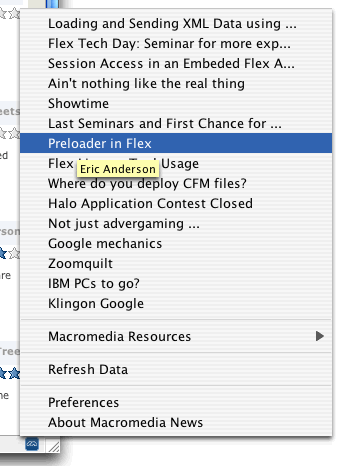
Default Layout
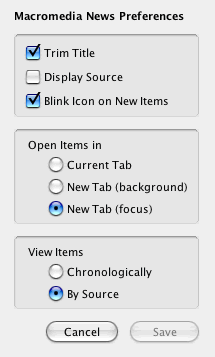
Preferences
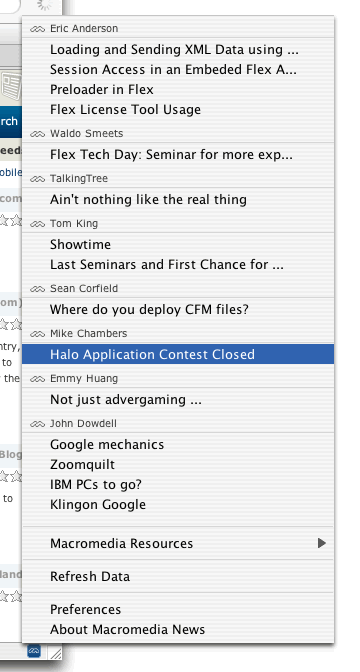 Layout ordered by Source




)